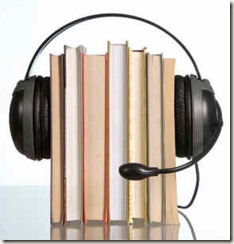
 I love borrowing audiobooks on CD from my local public library, but I hate how complicated it can be to transfer them onto my iPod Touch for listening.
Because iTunes assumes that any CD I try to import is a music CD, the handling of audiobooks on CD gets messy. An audiobook imported as “music” shows up in the Music category of iTunes, each audio track as a separate item, subject to shuffling, and without bookmarks.
There are a number of resources on the Internet giving instructions for handling this problem, but I’ve worked out my own procedure using Windows & iTunes 10 that’s relatively fast and easy, and thought I’d document it here – for my own reference, and in case it’s helpful to anyone else struggling with this thorny issue.
Before You Start
- Launch iTunes.
- Pull down the Edit menu and choose Preferences, then make these two selections:
- When you insert a CD: Show CD (not automatically import)
- Import Settings: chose AAC Encoder (default) & Spoken Podcast (32 kbpps mono/64 kbpps stereo).
Import the CD
- Insert the first audiobook CD into your disk drive.
- In iTunes, select all the tracks shown, by clicking on the first track and Shift+clicking on the last track.
- Pull down the Advanced menu and choose Join CD Tracks. This groups all the individual tracks on the disc into one unit – much better!
- With the tracks still selected, right-click and choose Get Info. Enter an Album title using the book title and the disc number.
For example, type an album title like The Sugar House 01 or Sugar House Disc 01. Whatever you choose for the album title, use it consistently across all the discs of the audiobook so they’ll sort properly in iTunes.
- Now click the Import CD button.
After the Import
At this point iTunes has imported the audiobook disc as one big track, but it’s still in the Music category of your iTunes Library, not yet associated with your other audio Books. You can fix this after the disc has been imported into iTunes.
- Locate the disc you just imported, in the Music category of your iTunes Library.
- Click the right mouse button and choose Get Info again.
- On the Options tab, click Media Kind and choose Audiobook.
- Also on the Options tab, click to enable Remember Playback Position (your bookmark) and Skip When Shuffling.
- Optional: if you want to assign artwork to the audiobook files, click the Artwork tab and upload a pretty picture.
- Click OK when you’re done.
Now the first file of the audiobook is moved into the Book category of your iTunes library.
- Your Import Preferences will be remembered, so all you have to do is repeat the Import the CD and After the Import steps for each disc of your audiobook.
When you’re finished you’ll have one “book” file in your iTunes Books library for each disc of the audiobook. If you’d rather have a real audiobook with just one or two files, you’ll have to use additional software like Chapter and Verse to consolidate the files. I don’t bother with this for audiobooks I’ve borrowed from the library, but I would do it if I owned the audiobook.
And don’t forget to delete the audiobook files when your library loan period is up!
--MaggieBelize
Designer, kNotes for kNitters
Creator, Happy Hands Hand Creams for Fiber Artists
Sandia Park, NM


 Posts
Posts

